
- Home
- The app
The whole inspection, captured in your hand.
The TM44 phone app. Photograph each unit, let it read the plates, answer the questions, export the XML on site.
Screens and documents are from a sample account: the buildings, clients and assessor are made up.
Dark for the plant room. Light for the roof.
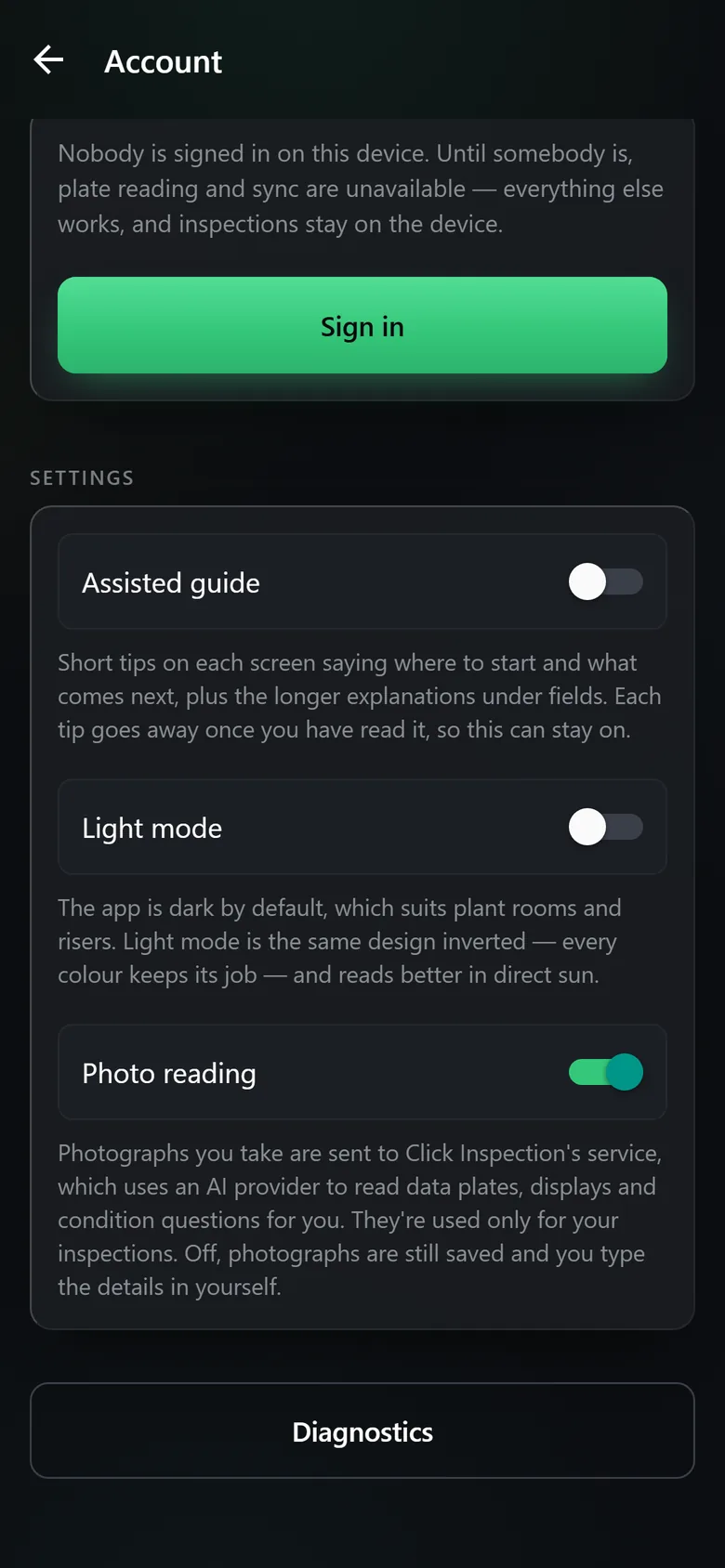
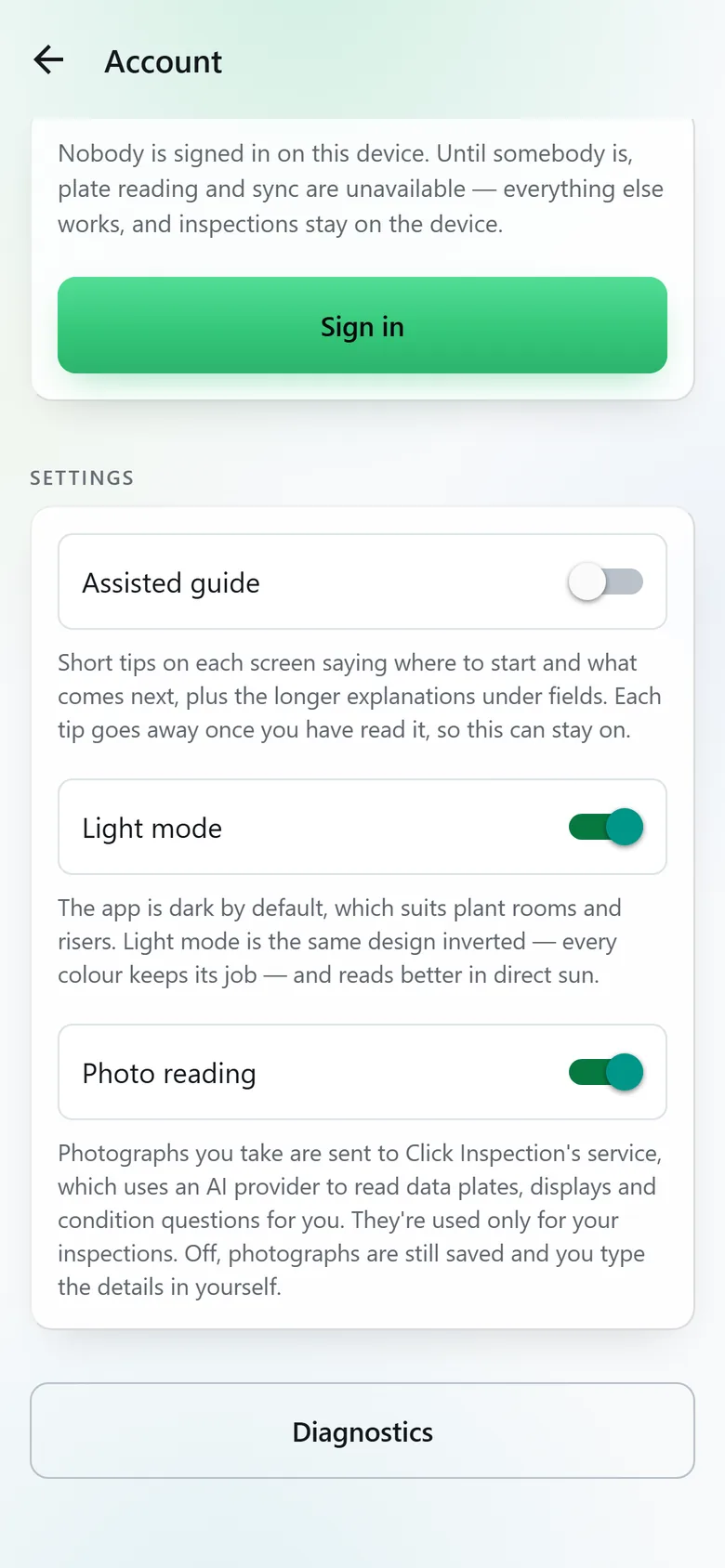
The app is dark by default, which is easier to read in a plant room, a riser or a ceiling void. In direct sun on a roof, switch to light mode in Account.
- It is the same design inverted, so every colour keeps its job: green is still what the app filled in, and red is still an exception.
- One switch, and the whole app follows it. The screens, their order and their buttons do not change.
- Further down, the screens take turns, light then dark, so you see both on the way.
How to use it, from the desk to the car park.
The order that gets the most from the app on a working day. Every step saves as you go, so you can stop anywhere and pick up where you left off.
-
01At the desk
Set the job up before you go.
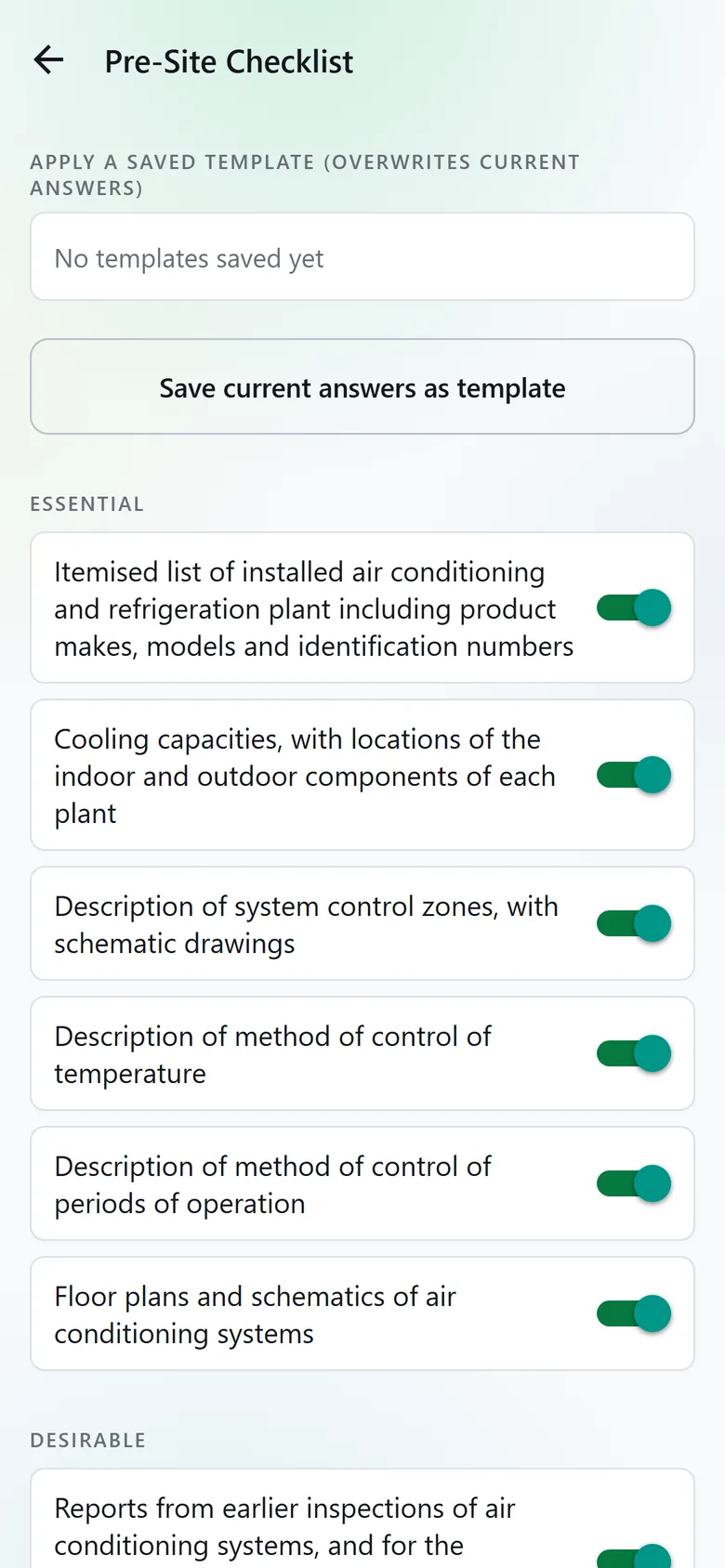
Create the site, your assessor profile and the inspection, on the phone or in the dashboard. Tick off the pre-site records the client has sent. A set you use often saves as a template and applies in one go.
Light mode -
02Arriving
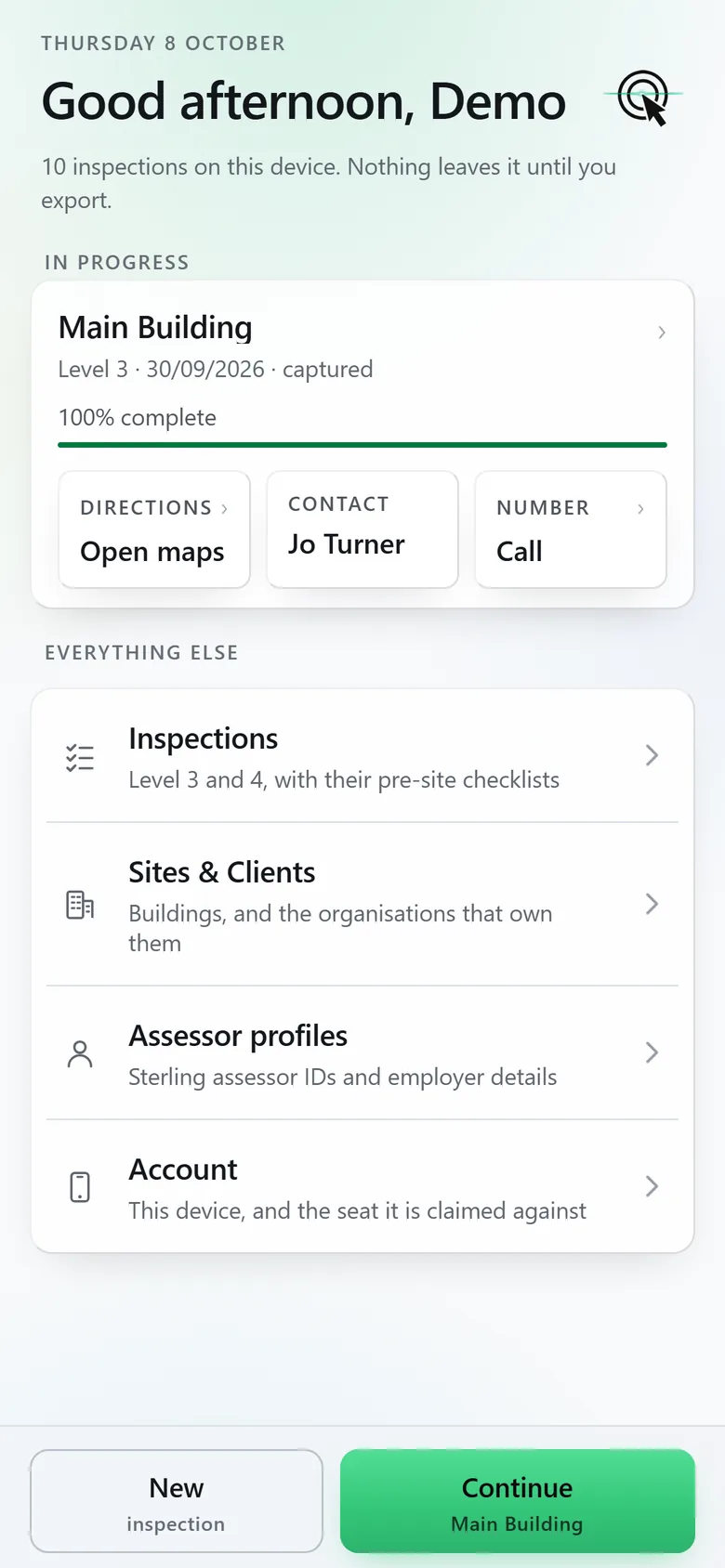
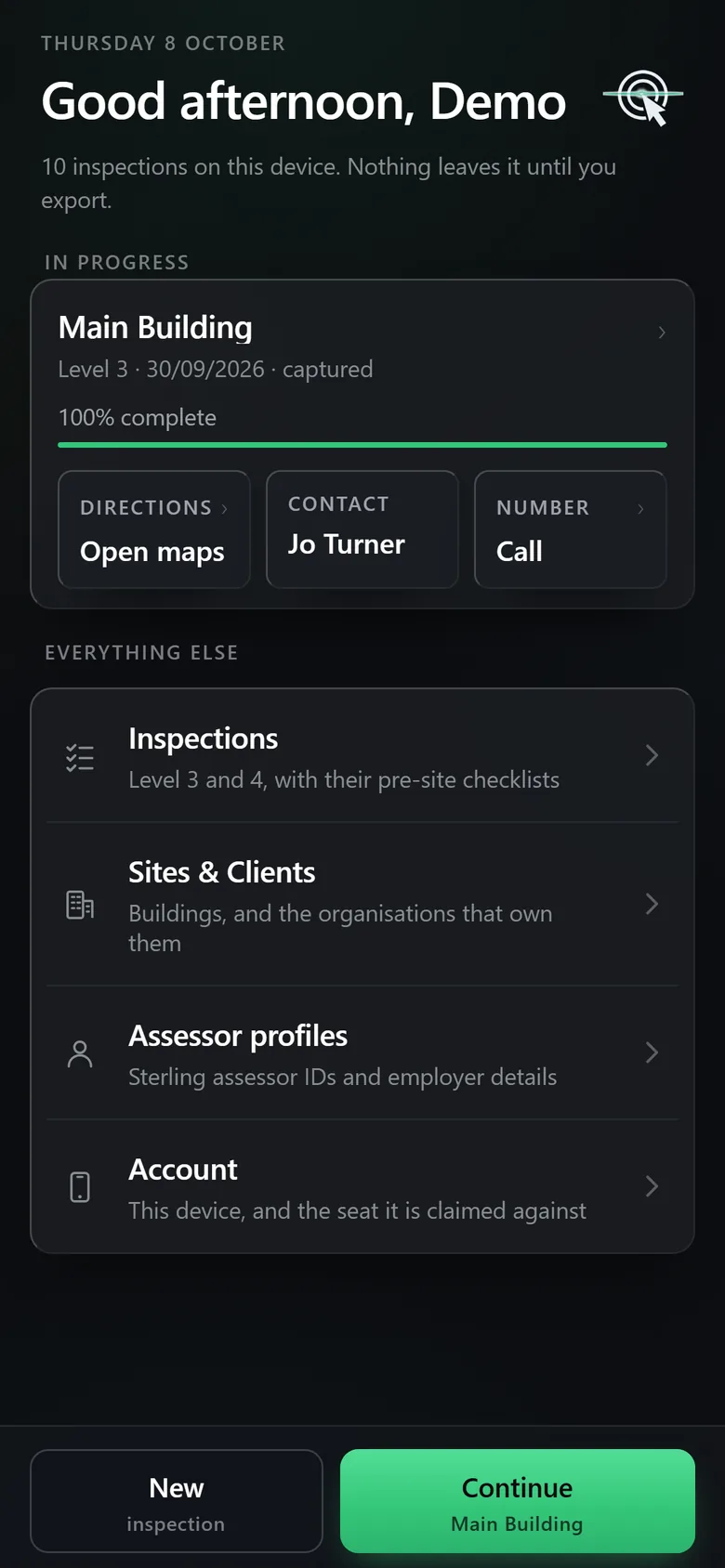
Home opens on today’s job.
The inspection in progress, how complete it is, directions to the site, the person on site and a button to call them, with Continue at the foot of the screen where a thumb reaches it.
Dark mode -
03The walk-round
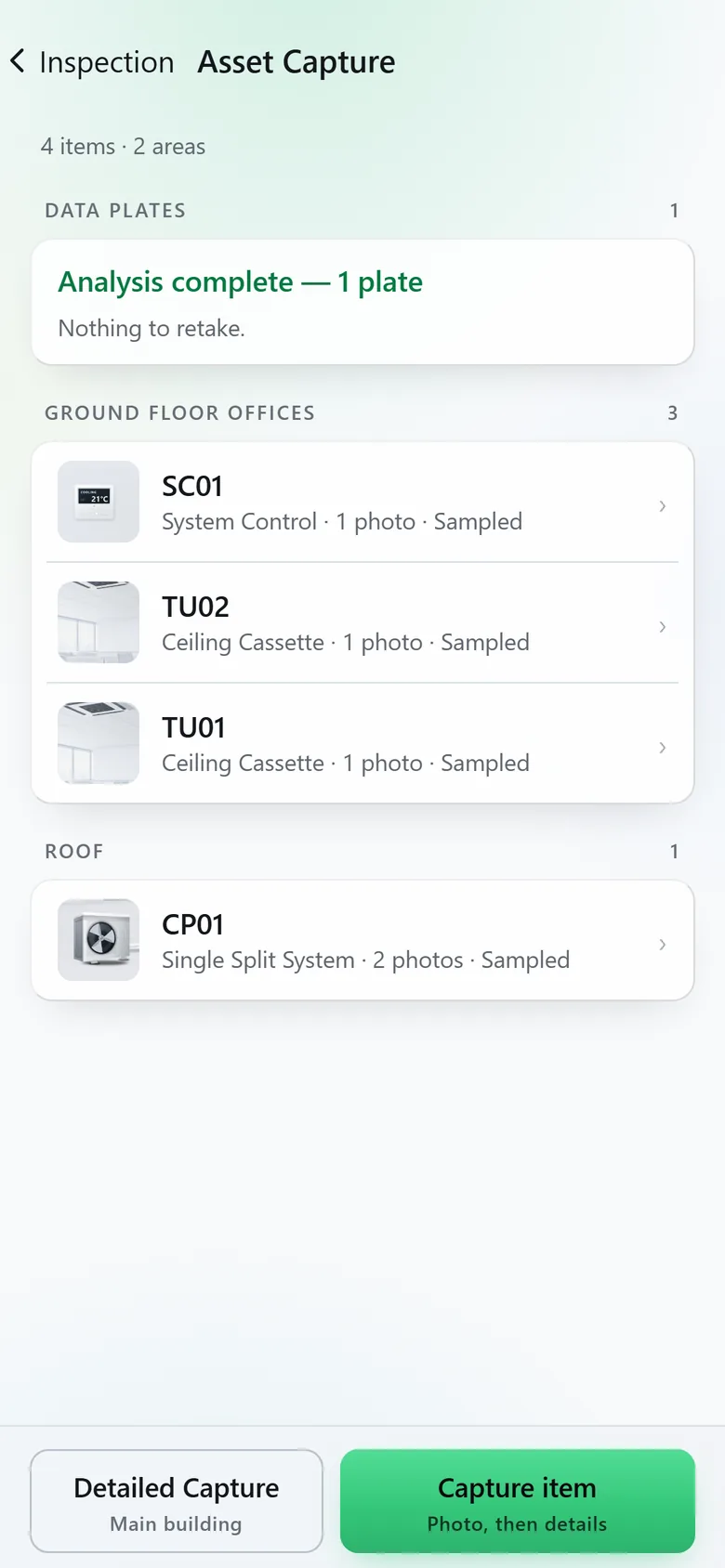
Photograph the plant as you meet it.
Capture each unit by its type and put it in its area; labels can wait. With photo reading on, each data plate is read as soon as there is signal, and the list says which, if any, to retake before you leave site.
Light mode -
04The data plate
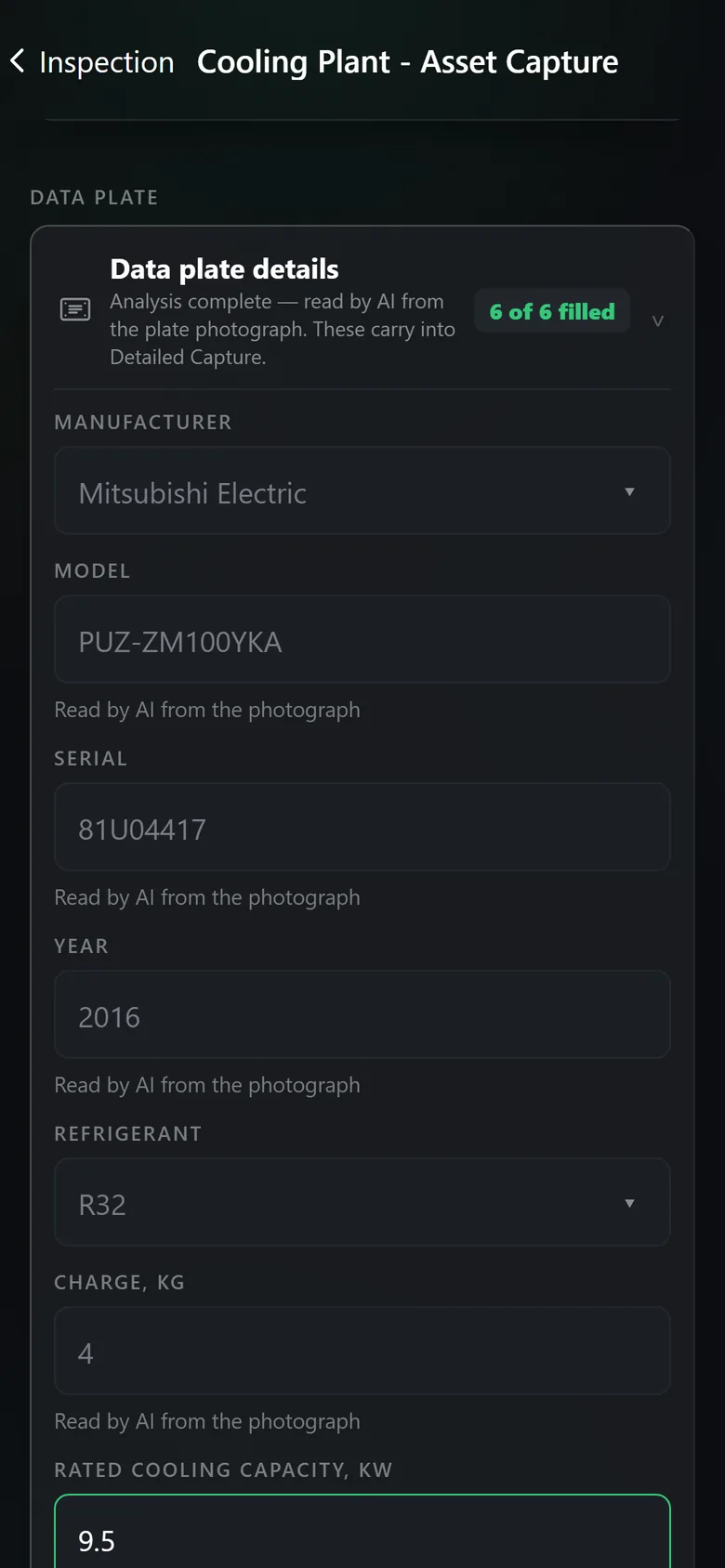
The plate is read for you.
Make, model, serial, year, refrigerant and charge come off the photograph, each marked as read by AI. The rated cooling capacity is looked up from the model number and outlined in green, the app’s mark for a figure it filled in. Type over anything.
Dark mode -
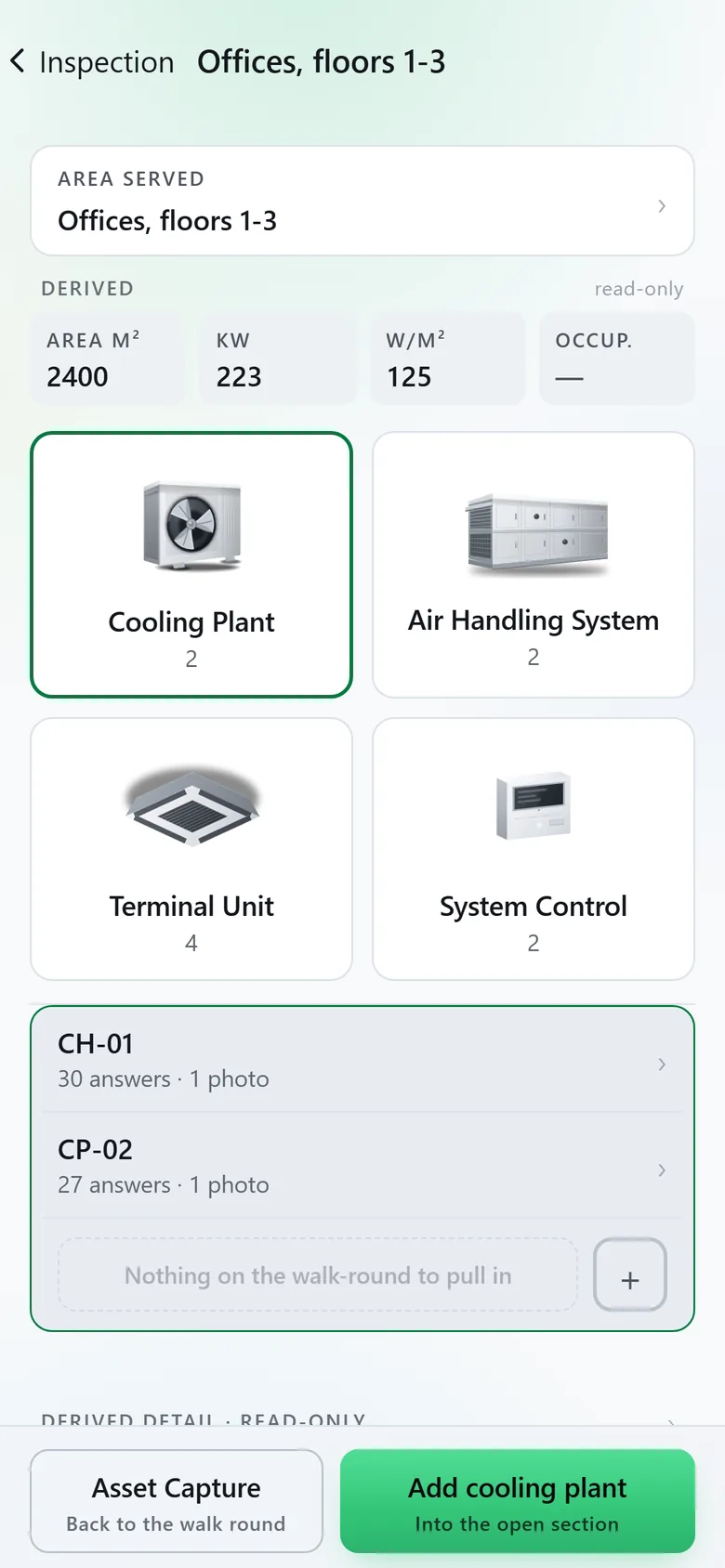
05Detailed capture
Work through each sub-system.
Detailed Capture is grouped by sub-system, one for each area served. Each shows its cooling plant, air handling, terminal units and controls, drawn as the equipment itself, with the floor area, installed capacity and heat gain worked out.
Light mode -
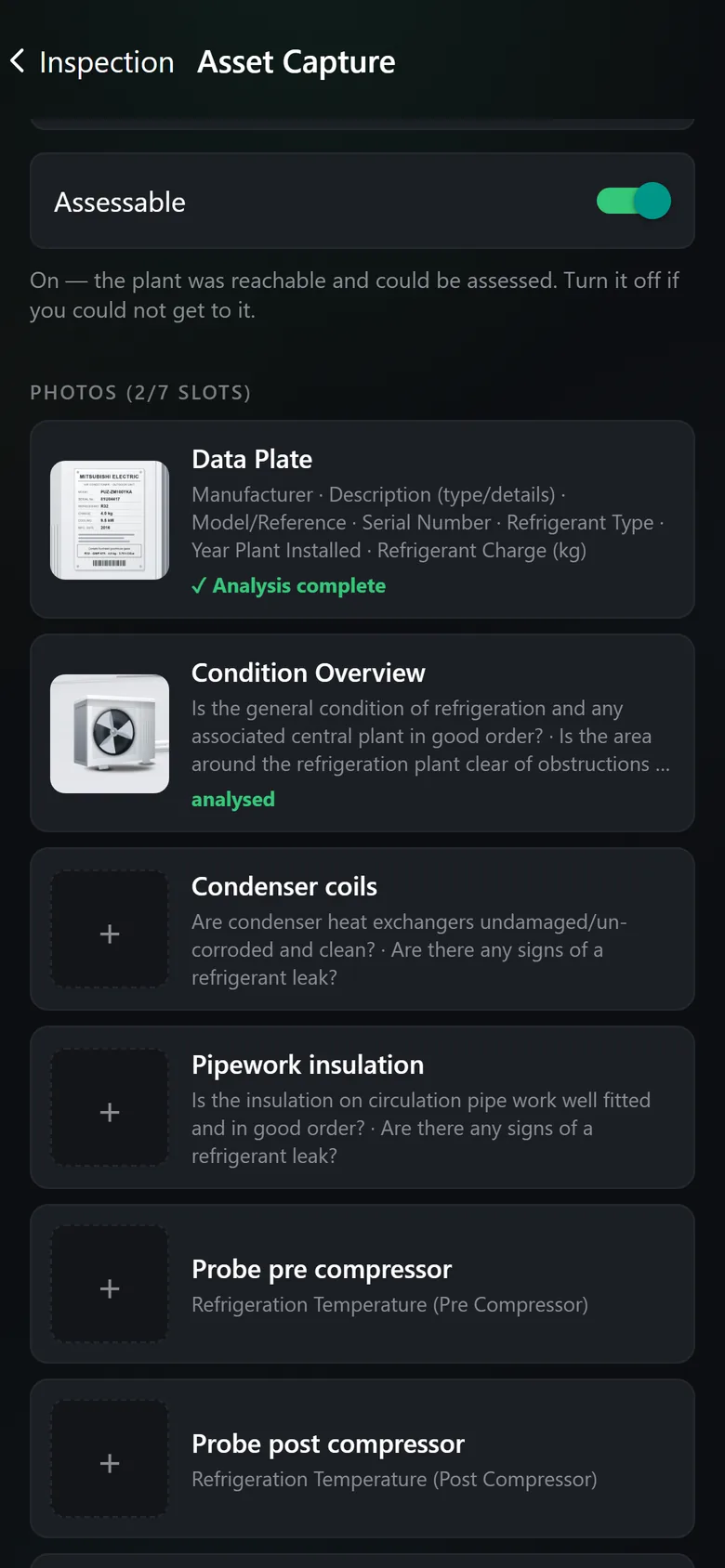
06The equipment
Every photograph names the questions it answers.
Each unit’s photo list is fixed by its type, and each box lists the inspection questions that photograph is for. With signal, the photographs are read and those questions answered for you. Change any answer you disagree with.
Dark mode -
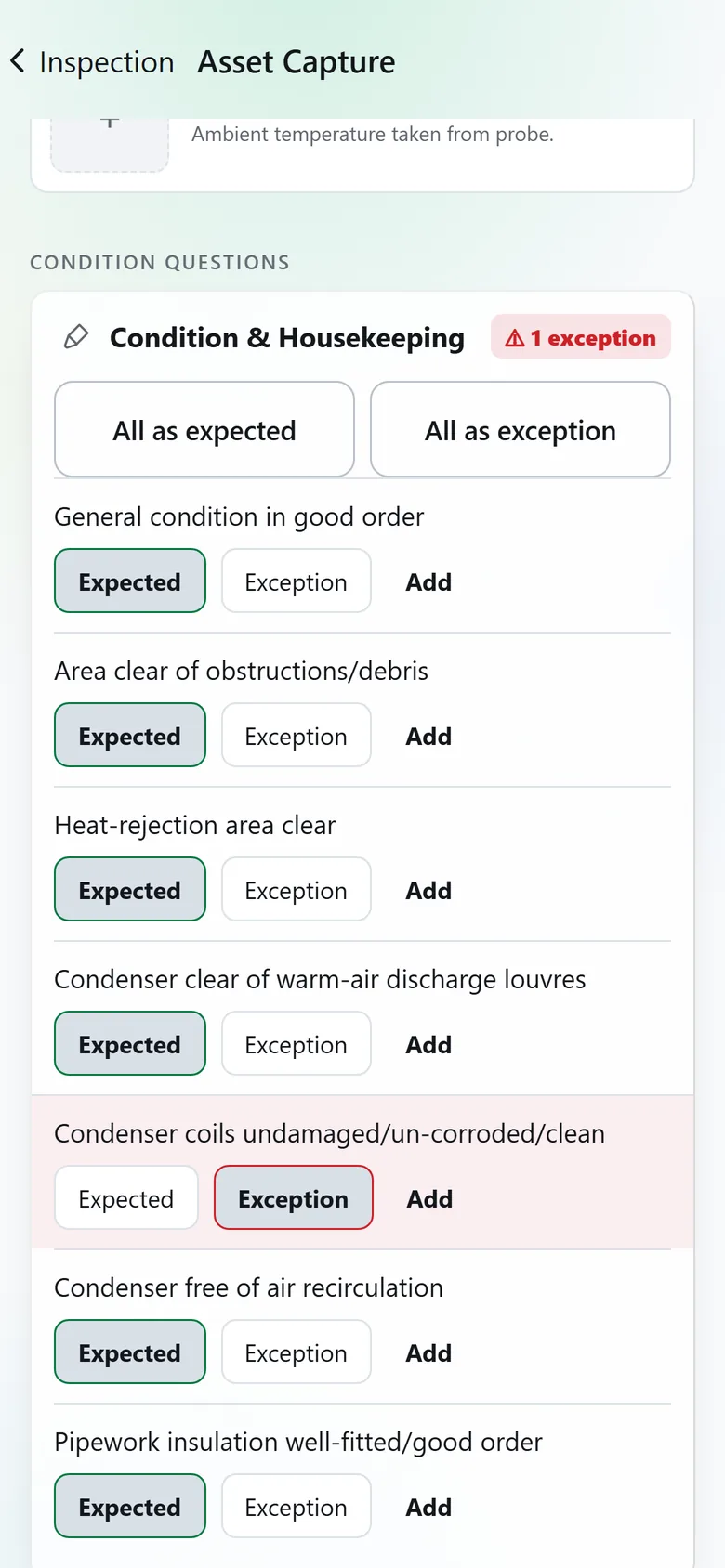
07Condition questions
One tap when it is all as expected.
The questions come in groups. When everything in a group is as expected, All as expected answers the lot in one tap. An exception is flagged in red and carries the standard note and recommendation for that answer: pick another, edit it, or write your own.
Light mode -
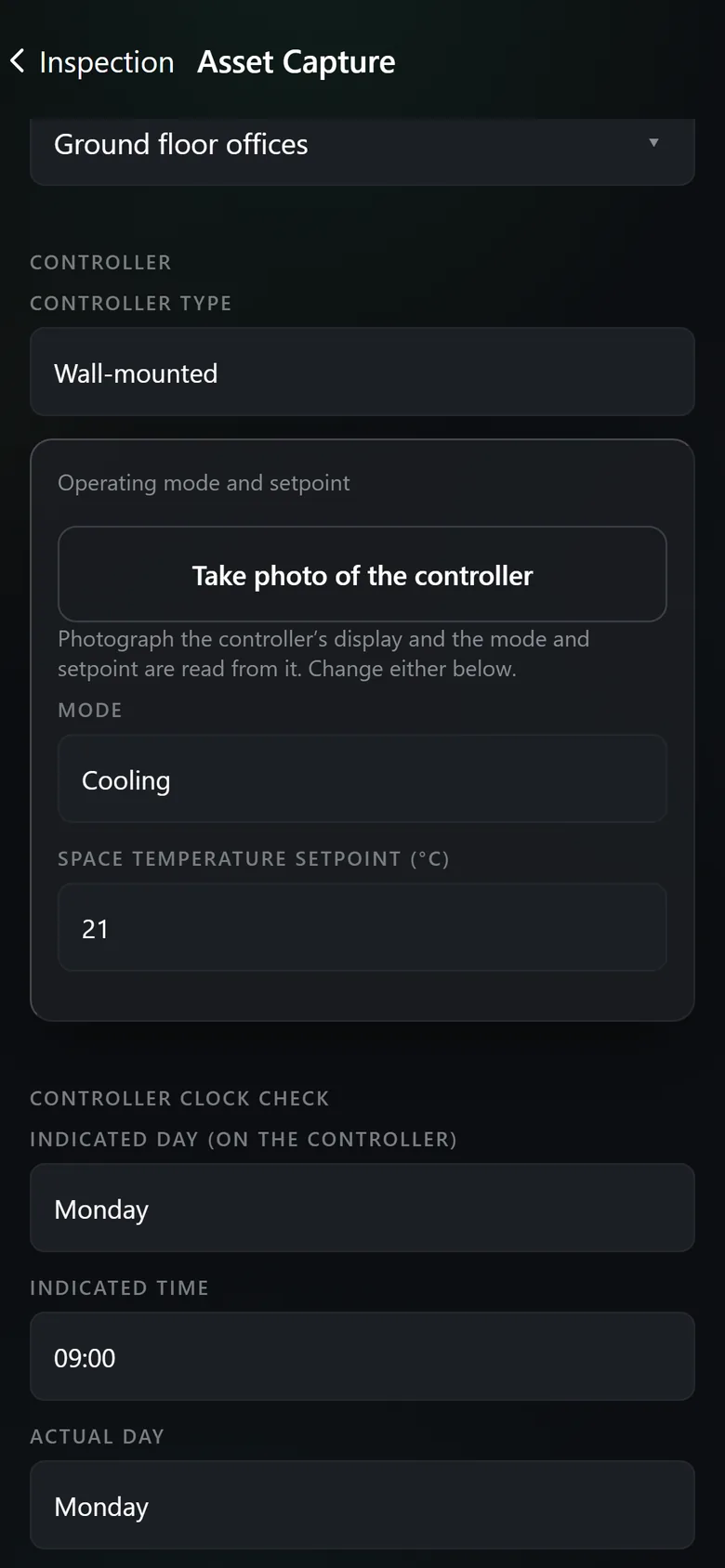
08The controls
Photograph the controller for its mode and setpoint.
A Take photo of the controller button sits above the operating mode and setpoint. The picture goes into the controller’s photo list, and the AI reads the mode and setpoint off the display and fills both in. The clock check and time schedules are picked, not typed.
Dark mode -
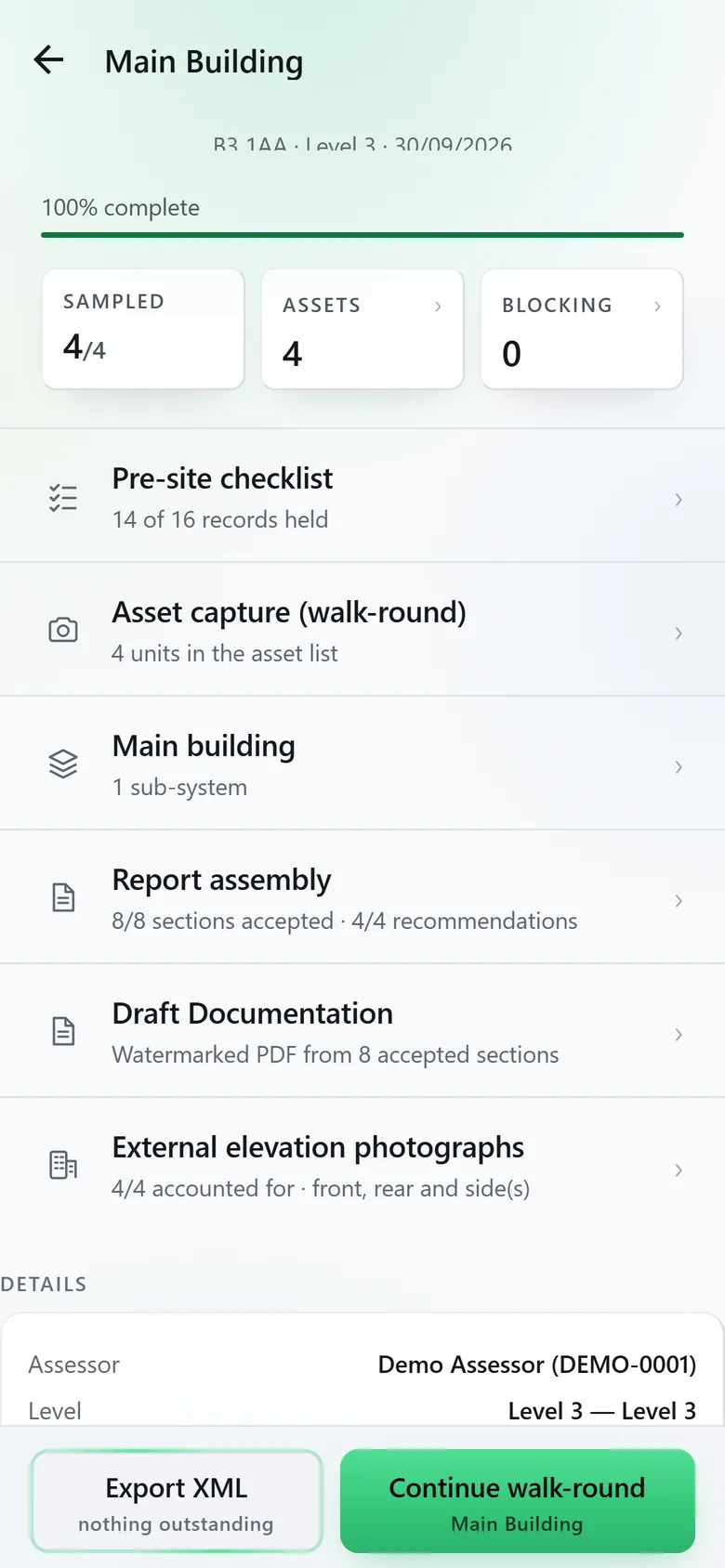
09Before you leave
Leave with it finished.
The inspection lists anything still outstanding and will not export until nothing is. Then Export XML writes the lodgement file on the phone, with the report already assembled from what you recorded. Each zone can be drawn with the zone sketch on the way round.
Light mode
Built for buildings with no signal.
What the app does for you on site, and what it will not do.
On site
- Nothing waits for signal
- Every answer and photograph is saved on the phone the moment you make it. Photographs are read when signal returns, and the inspection syncs to your dashboard whenever you are signed in.
- The outdoor temperature, filled in
- The ambient temperature is filled in from the weather at the site postcode for the hour you are there. Photograph your probe and its reading replaces it.
- Dated photographs
- Each photograph gets a dated copy for the audit trail. The original is kept exactly as the camera took it.
What it will not do
- Send a photograph unasked
- Photographs are only sent to be read once you have allowed it. Turn photo reading off in Account and every photograph is still taken and kept; you type the details in yourself.
- Make a figure up
- Anything it cannot read or look up stays empty, and the inspection lists it as outstanding until you fill it in. Blank before wrong.
Less typing
- Templates and duplicates
- Save a unit’s answers as a template and apply them to the next one. Duplicate a unit and correct what differs: its serial, charge and probe readings stay behind.
- A guide on every screen
- Short tips say where to start and what comes next, and each one goes once it is read. Switch the guide back on in Account at any time.
The app is on every plan. Pay As You Go, Private and Corporate all include everything on this page. Exporting a zone sketch’s drawings is the one premium extra in the app.
